Kingsway Charities Portal — Customer Tutorial
For recipient organizations partnering with Kingsway Charities Last Updated: June 25, 2026
This guide walks your organization through every step of using the Kingsway Charities portal — from signing up to receiving your shipment and downloading your donation records. About 10 minutes to read end-to-end. You only need to go through it once. Keep it bookmarked for the team members who handle ordering and trips.
If something on the portal isn't working the way this guide describes, email info@kingswaycharities.org and someone on the Kingsway team will help.
1. What the portal is for
The Kingsway Charities portal is your organization's home base for:
- Submitting trip requests with your physician's authorization
- Browsing the catalog of available pharmaceuticals and medical supplies
- Building a cart and submitting an order for an upcoming trip
- Paying for processing fees and shipping
- Tracking your shipment with FedEx
- Downloading your Donation Invoice and Certificate of Donation for your records
The portal is at kingsway.v.frappe.cloud. Bookmark it.
2. Signing your organization up
Your organization signs up once. After that, individual team members can be added without going through this process again.
Go to /signup and complete the wizard:
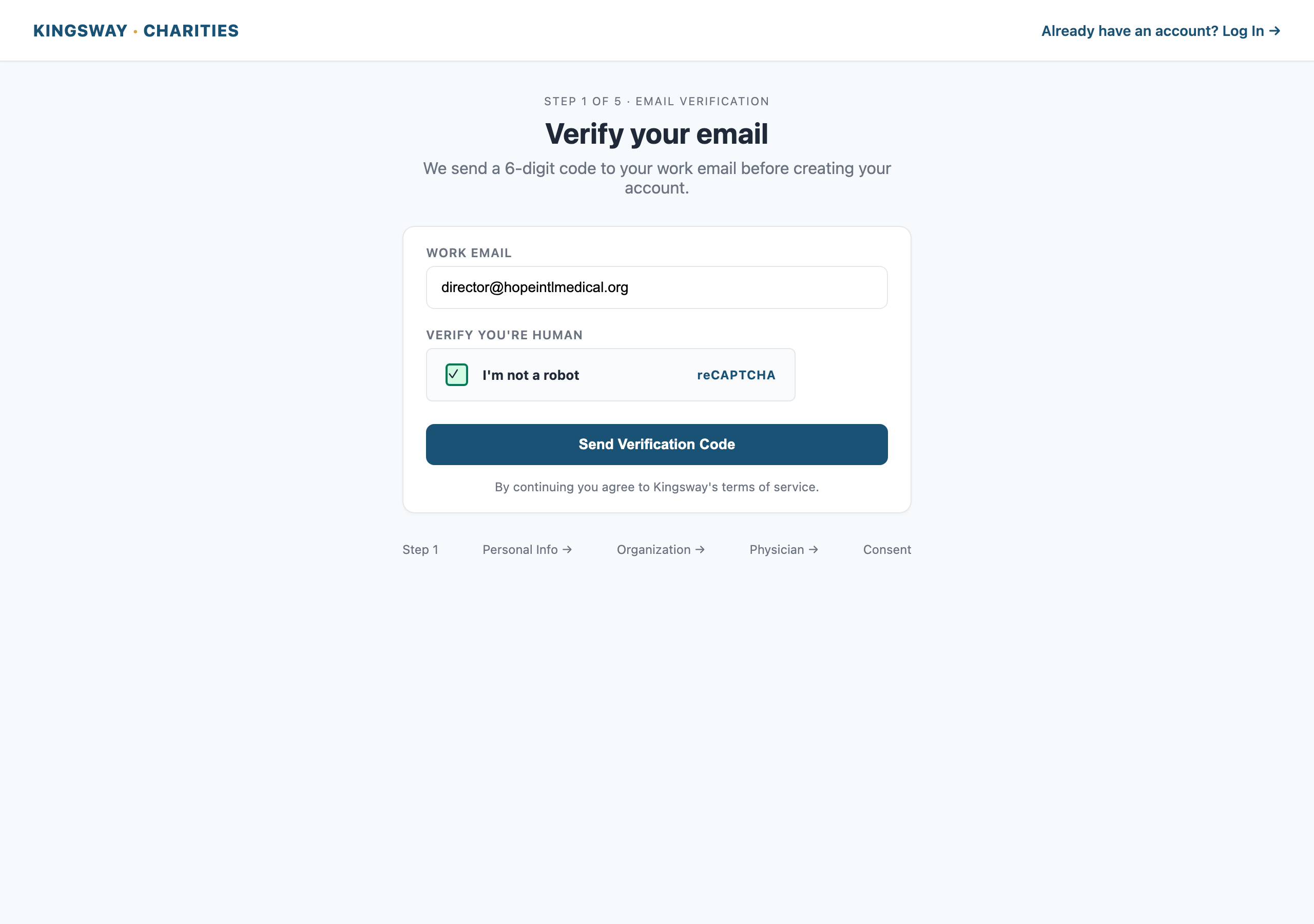
The signup wizard collects:
- Email verification — enter your work email, complete the reCAPTCHA, and enter the 6-digit code we send you. This proves the email is yours before we create the account.
- Personal info — your name, phone, position at the organization, and address.
- Organization info — legal name, EIN, website, address, 501(c)(3) status.
- Physician — name, email, phone, degree (MD/DO/DDS/DMD), licensing states, license expiration, and a copy of the license.
- Consent — confirm you have authority to sign your organization up.
After you submit, you'll see a confirmation screen. Your physician gets an email from Kingsway with a secure link to sign their authorization. The link is valid for 7 days. Your account stays in Pending Approval until a Kingsway admin reviews and approves the organization — usually within one business day.
When your organization is approved, you get a welcome email. You can log in from that point on.
3. Logging in
The portal uses passwordless login — there is no password to remember. Every time you log in, we email you a one-time 6-digit code.
Go to /login:
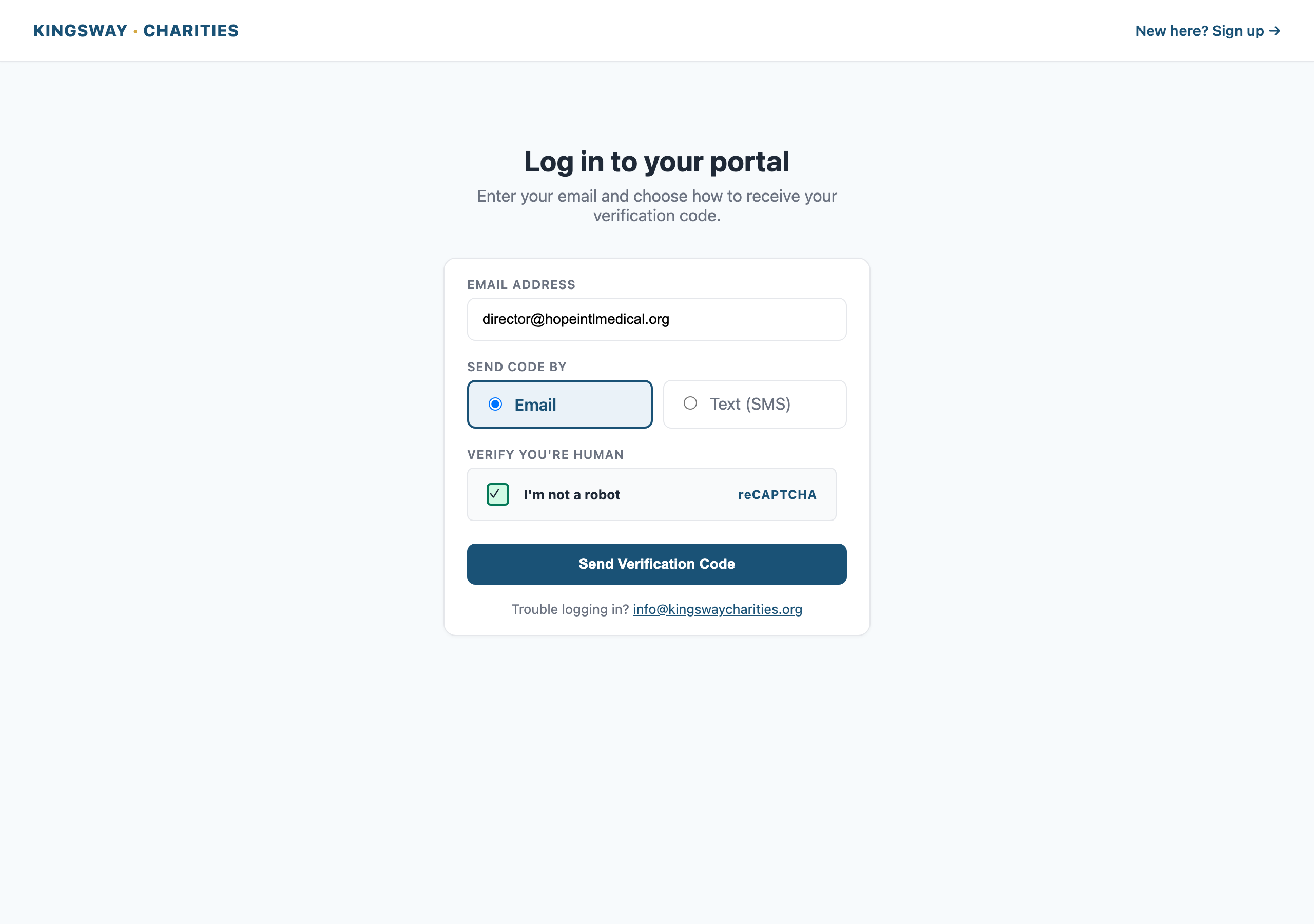
- Enter your email address
- Complete the reCAPTCHA
- Click Send Verification Code
- Check your inbox for an email from Kingsway Charities with the 6-digit code
- Enter the code on the next screen and click Verify
If the code doesn't arrive in 60 seconds, check your spam folder, then click Resend Code. If it still doesn't arrive, email info@kingswaycharities.org.
If you have a mobile number on your account, you can also choose to receive the code by SMS instead of email — pick the SMS option before clicking Send Verification Code.
4. Your dashboard
After you log in, you land on your dashboard:
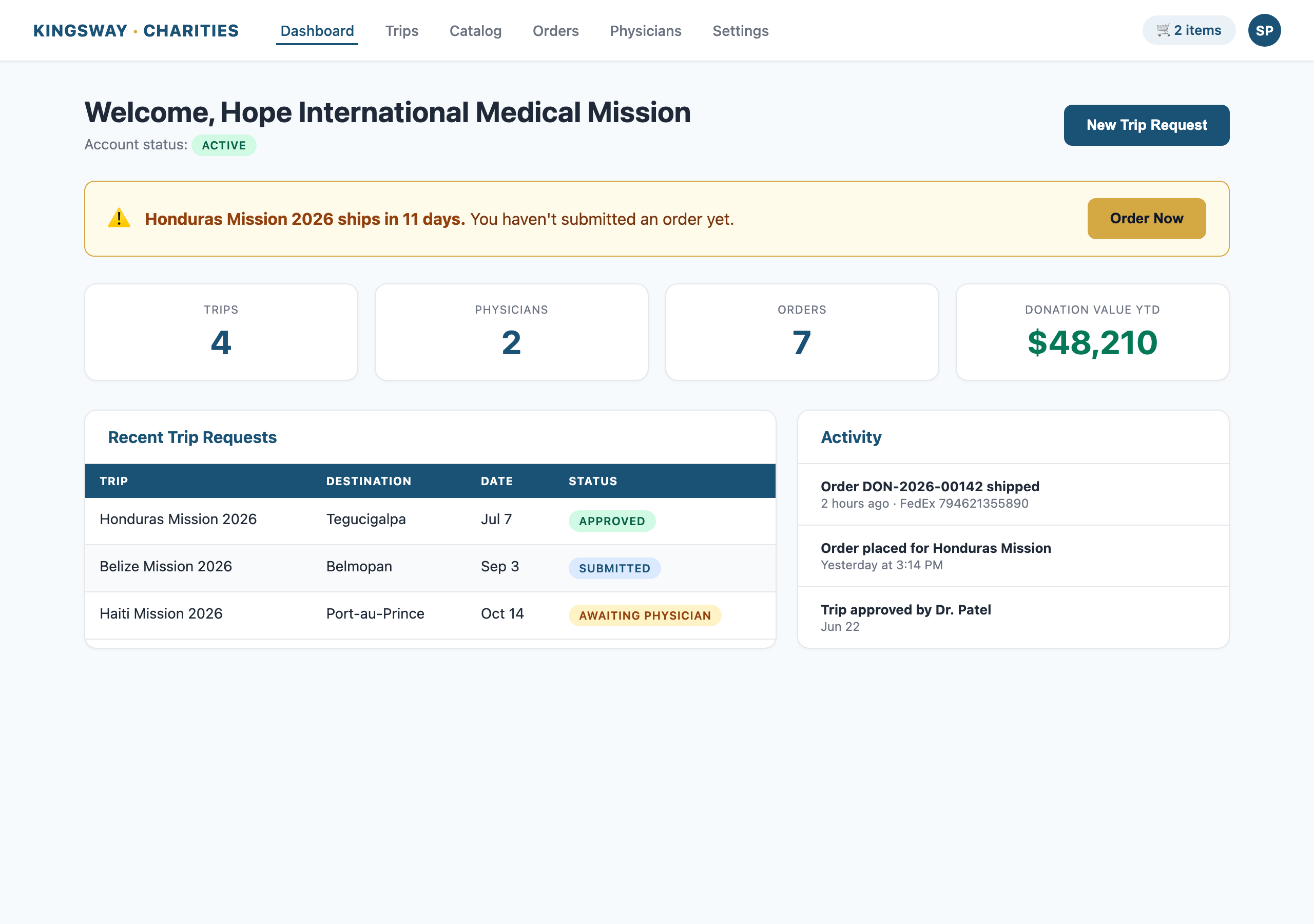
The dashboard shows:
- Stats cards — how many trips you have, how many physicians are linked, how many orders you've placed
- Recent trip requests — your most recent trips and their status
- Alerts — if you have an approved trip coming up in the next 15 days and haven't placed an order yet, a banner reminds you here
- Activity feed — last 5 events on your account (signups, approvals, orders placed, shipments)
From here you can navigate to Catalog, Trips, Orders, Physicians, Settings, and your full Activity History.
5. Browsing the catalog
Click Catalog in the navigation:
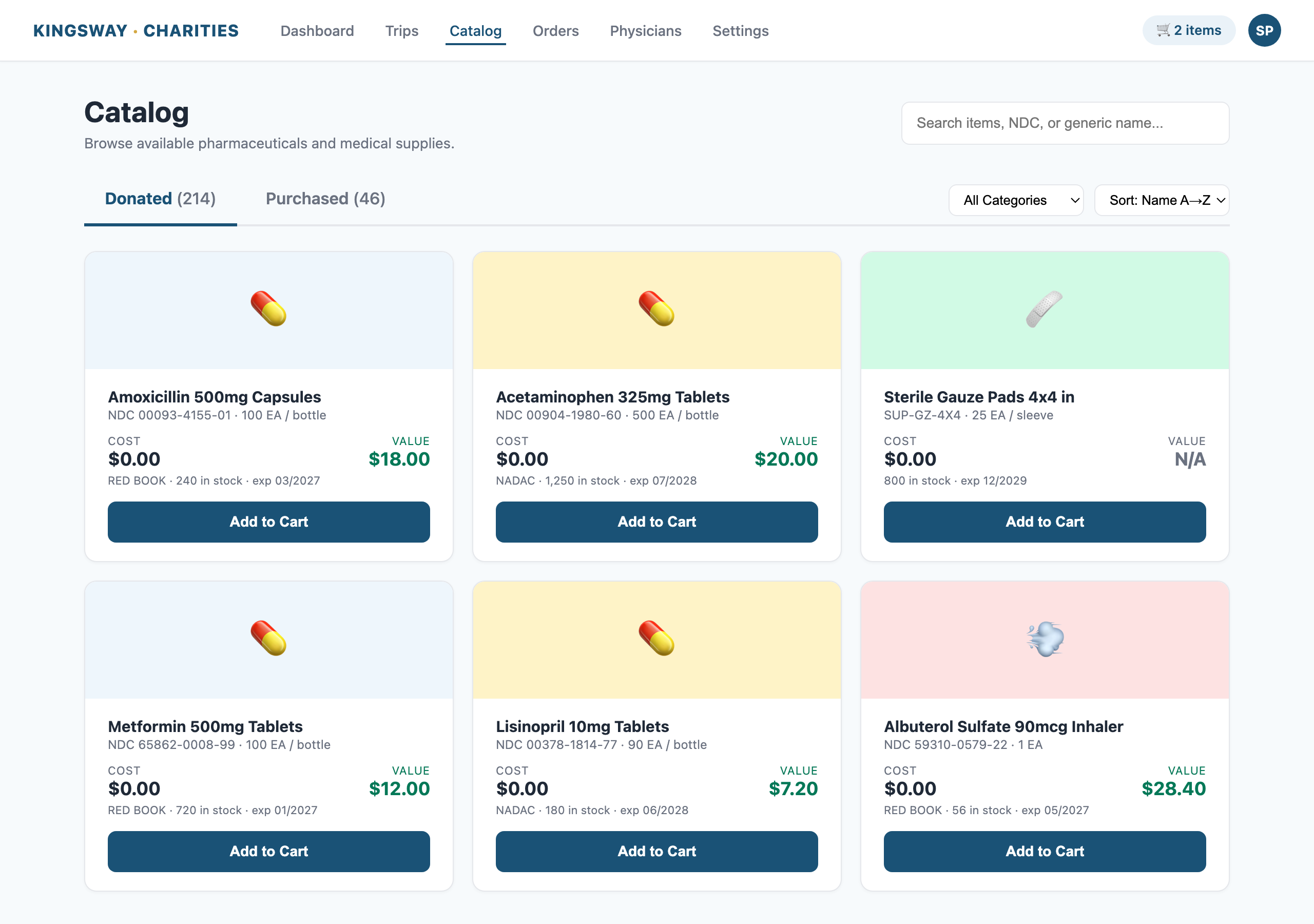
The catalog has two tabs:
- Donated — items Kingsway received as donations and provides at no item cost (you still pay a $25 processing fee per order and shipping)
- Purchased — items Kingsway buys; you pay the actual cost plus shipping
Each item card shows:
- Item name and dosage form (e.g. "Amoxicillin 500mg Capsules")
- Cost — what you pay per unit (zero for Donated; the rate for Purchased)
- Value — the wholesale market value of the unit, sourced from Red Book or NADAC. This shows the donation impact your organization receives.
- Quantity in stock and expiry
Click any item to open a detail modal where you can see the NDC, full description, and add the item to your cart with a quantity.
Items showing "N/A" for Value — some items don't have a published WAC price at the time of listing. That doesn't mean they're worthless; just that we can't quote a wholesale value yet. The donation totals on your final documents exclude these items rather than guessing.
6. Adding to cart
When you find an item you want, click Add to Cart on the card (or open the modal for more options):
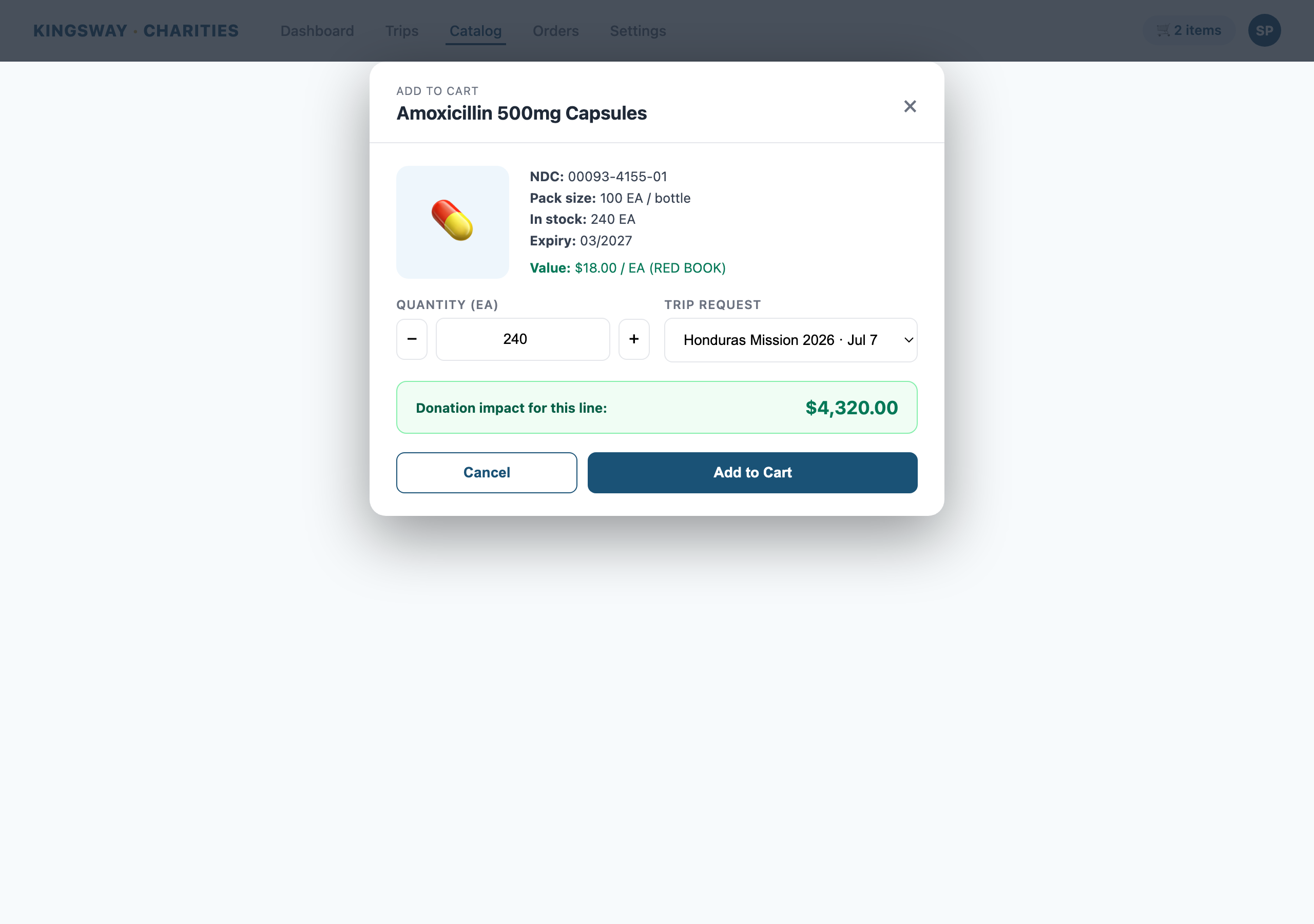
In the modal you set:
- Trip Request — every cart item is tied to a specific trip request your organization has on file. Pick the trip the item is for.
- Quantity — how many units.
- Click Add to Cart.
The cart icon in the top navigation updates to show how many items you have queued. Carts persist between sessions — there's no time limit. If an item goes out of stock while it's in your cart, we'll email you and remove it.
7. The cart and checkout
Click the cart icon in the navigation to review your order:
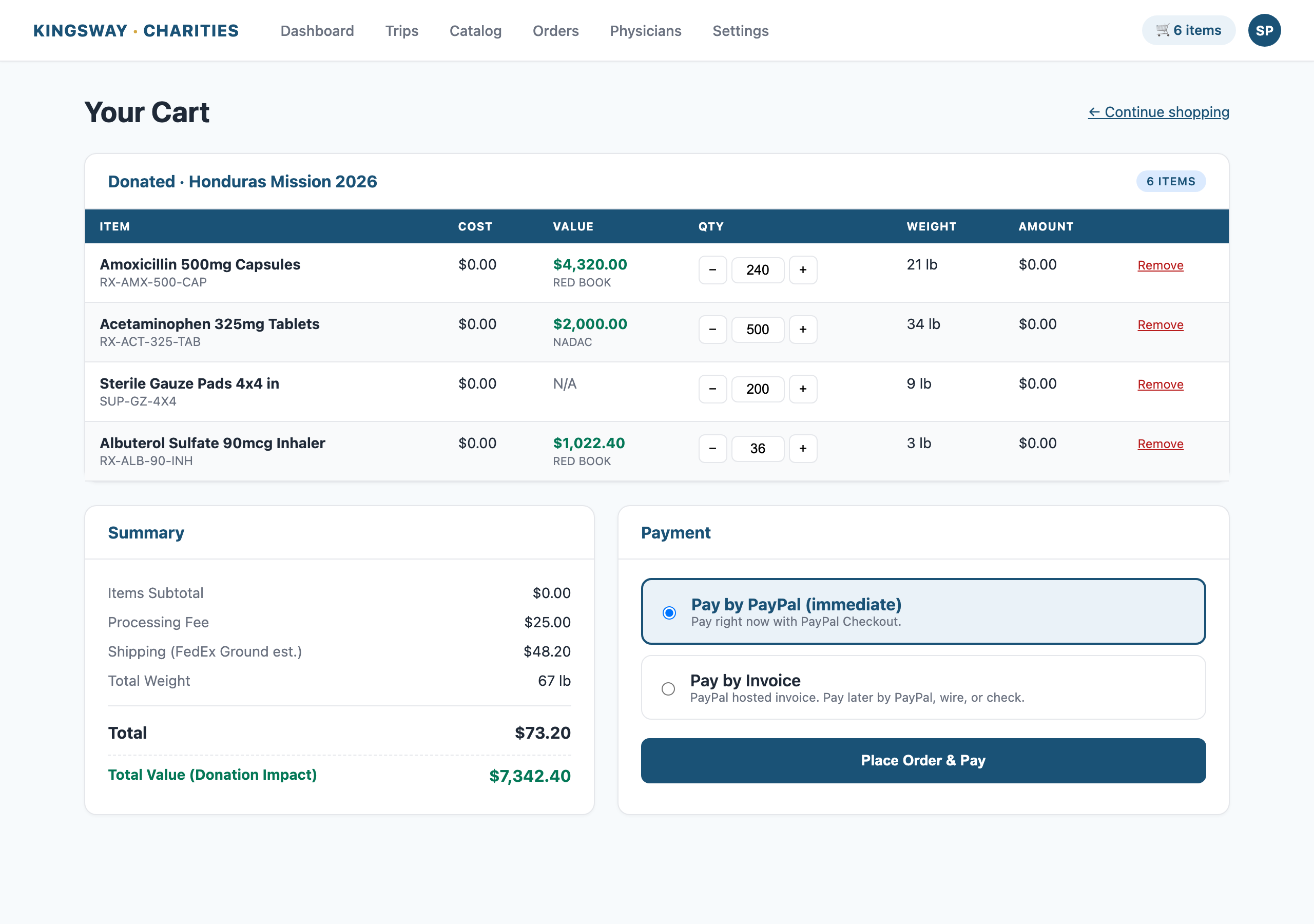
The cart shows:
- Itemized table with item name, Cost, Value, Qty, Weight, Amount
- Quantity controls — use the +/- buttons or type a new number to update
- Subtotal — the dollar amount you'll pay
- Total Value (Donation Impact) — the green row showing the wholesale value of what you're receiving
- Processing fee ($25 for Donated orders only)
- Shipping estimate from FedEx based on the weight and your address
Once you're ready, scroll down to the payment section. You'll see one or both of these options depending on how your account is configured:
- Pay by PayPal (immediate) — pay right now with PayPal Checkout. Your order moves to fulfillment as soon as PayPal confirms.
- Pay by Invoice — receive a PayPal hosted invoice by email; pay later by PayPal, wire transfer, or check. Available for organizations who have requested it.
Select your method and click Place Order.
Carts over 4500 lb behave differently. See the next section.
8. Big orders (4500 lb and over) — Freight Quote
If your cart goes over 4500 lb, FedEx Ground stops being practical and we have to ship freight. The portal handles this for you:
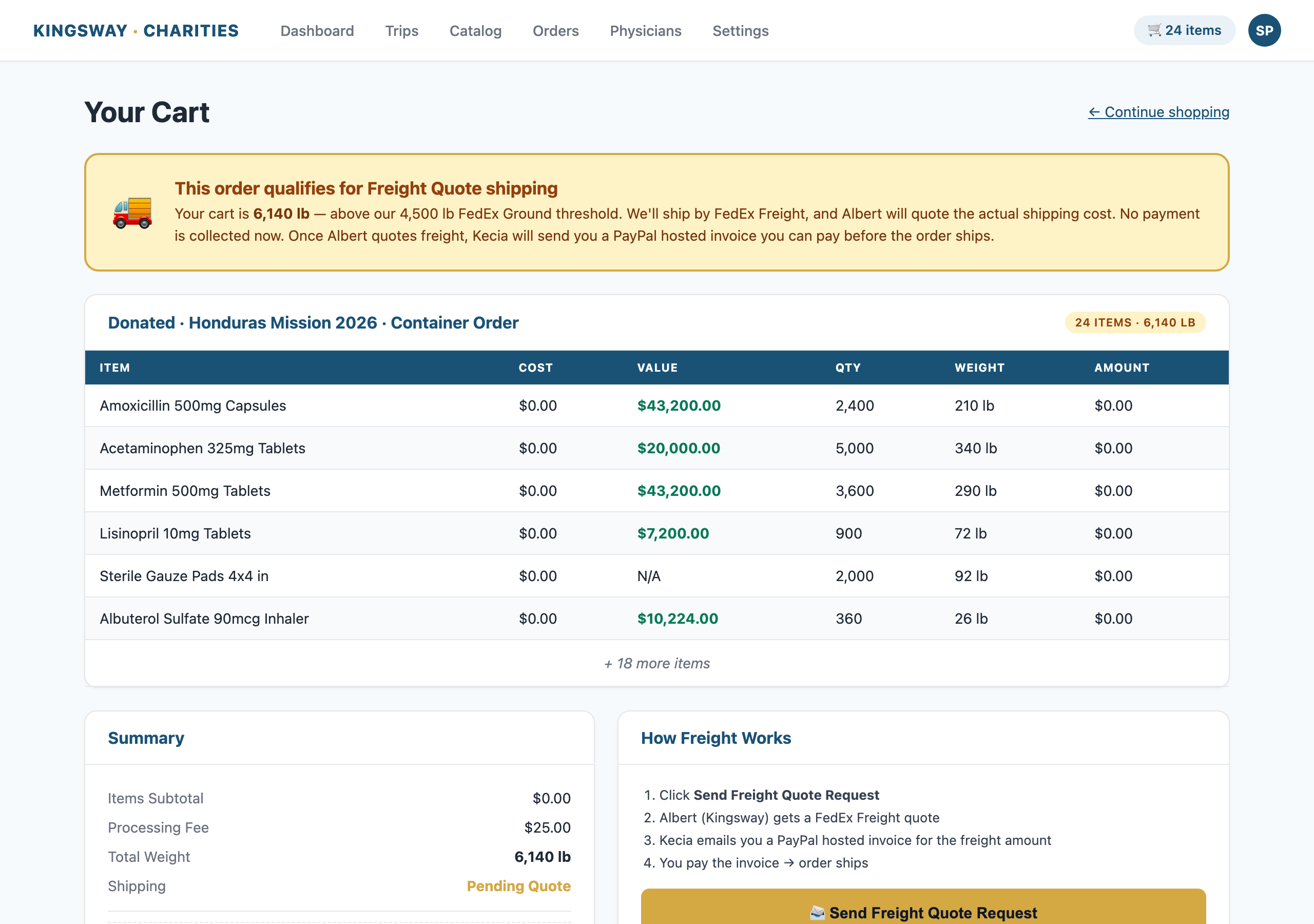
Instead of the normal PayPal button, you'll see a yellow banner and a Send Freight Quote Request button. When you click it:
- Your cart is parked as a draft order with status Awaiting Freight Quote
- The Kingsway shipping team is notified
- Albert (Director of Operations) gets a freight quote from FedEx Freight for your shipment
- Kecia (Operations) adds the shipping cost to your order and emails you a PayPal hosted invoice for the freight amount
You pay the freight invoice through PayPal. Once it's paid, the order moves to fulfillment like any other order. The items themselves (Cost) still cost what they cost — the freight invoice is just for the shipping.
There's no payment collected at the moment you click Send Freight Quote Request. You only pay once Albert and Kecia have confirmed the actual freight cost.
9. Tracking your shipment
Once your order ships, you'll get an email:
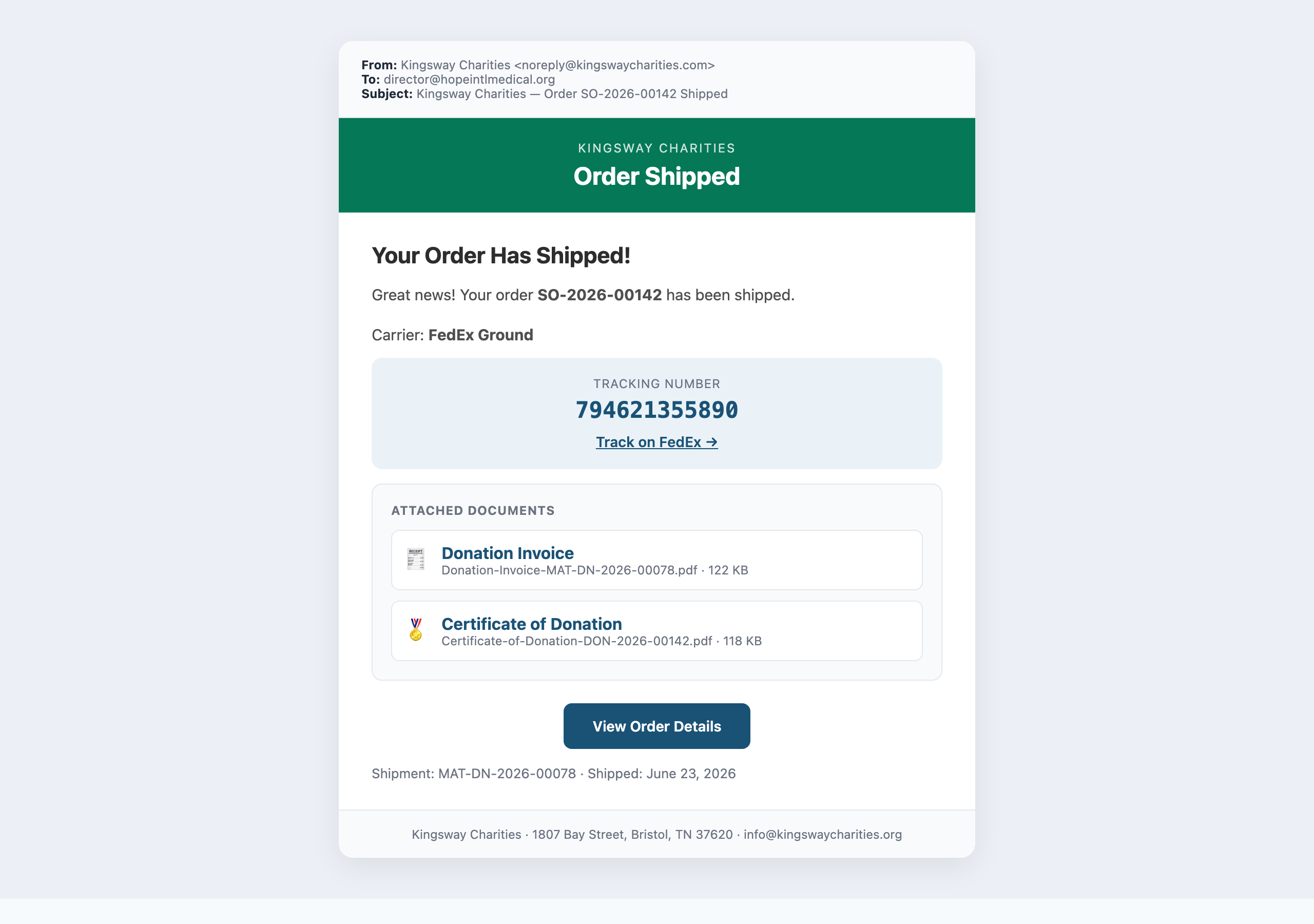
The email includes:
- Tracking number with a one-click FedEx tracking link
- Donation Invoice PDF attached (itemized statement of what was shipped)
- Certificate of Donation PDF attached (formal certificate signed by Albert)
You can also see the same tracking info and download the same PDFs anytime from the Orders section of the portal:
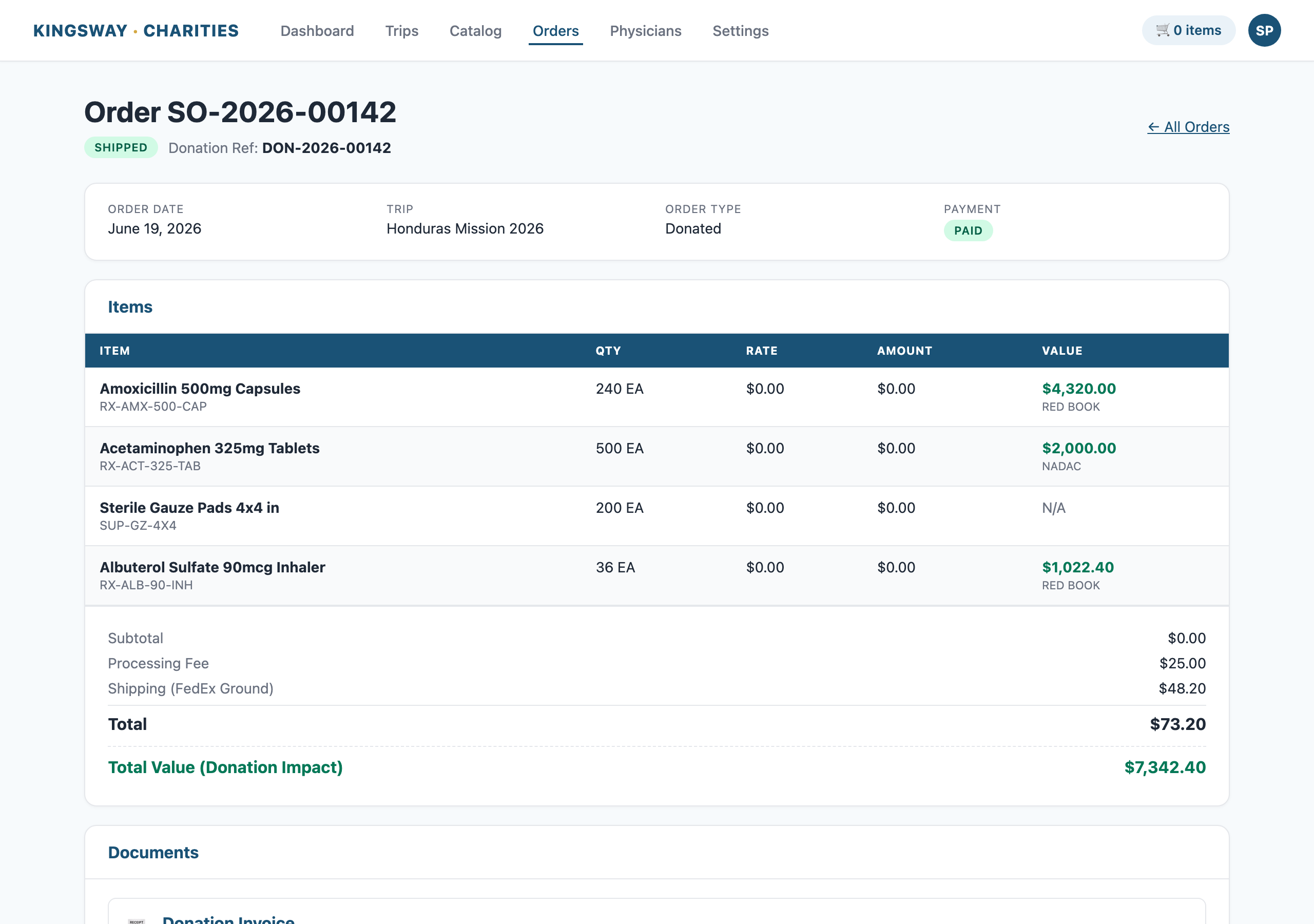
Click into any order to see:
- Order summary — date, status, payment method, your DON-YYYY-NNNNN donation reference number
- Items table with Value column and Total Donation Value
- Documents card — download links for the Donation Invoice and the Certificate of Donation. These stay available forever; you can download them again whenever your records team needs them.
- Fulfillment & Tracking — every Delivery Note with carrier, tracking number, and the FedEx link
10. Your donation documents explained
Every shipment produces two PDF documents you keep for your records.
Donation Invoice
A per-shipment itemized statement showing:
- Item name, NDC, lot number, expiry date
- Quantity shipped
- WAC unit price (your Red Book or NADAC wholesale value)
- WAC line value (qty × unit value)
- Total Donation Value at the bottom
This is the document your records team uses to log the wholesale value of what your organization received.
Certificate of Donation
A formal one-page certificate, one per order, showing:
- Your organization's name
- The mission trip it was prepared for
- Donation Reference Number (DON-YYYY-NNNNN) — Kingsway's permanent ID for this donation
- Total items, total quantity, and total donation value
- Signed by Albert W. Hester, Director of Operations, Kingsway Charities, Inc.
This is the certificate you can use for board reporting, donor acknowledgements, and your own records.
Both documents are stored on your order indefinitely. You can re-download them anytime from the Documents card on the order detail page.
11. Adding team members
Once your organization is approved, you can add other team members to use the portal without each one going through a fresh signup.
Go to Settings → Team:
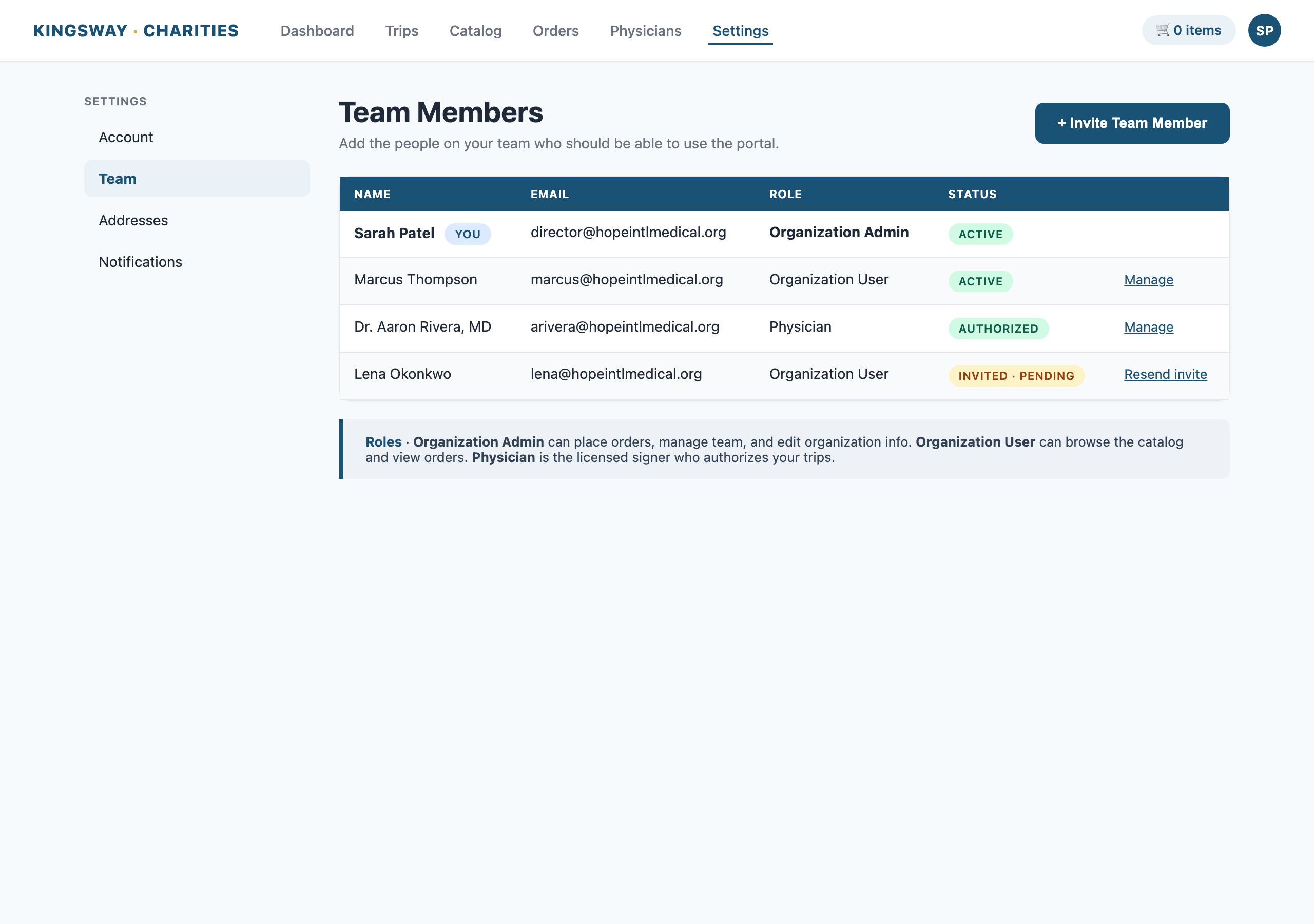
- Click Invite Team Member
- Enter their name, email, and role (Organization Admin or Organization User)
- They get an email with a link to set up their access
- They log in the same way you do (email → OTP code)
Roles:
- Organization Admin — can do everything you can: place orders, view all trips, manage team members
- Organization User — can view orders and browse the catalog but can't add new team members or change organization settings
12. Languages (coming soon)
The portal is in English today. We're rolling out translations so recipient organizations can use it in the language their team is most comfortable with.
Languages on the roadmap:
- Spanish (Español)
- European: French (Français), Portuguese (Português), German (Deutsch), Italian (Italiano), Polish (Polski), Russian (Русский)
- African: Swahili (Kiswahili), Amharic (አማርኛ), Hausa, Yoruba (Yorùbá), Zulu (isiZulu)
- Asian: Chinese – Simplified (简体中文), Korean (한국어), Japanese (日本語)
When a language ships, your Organization Admin will be able to set a Preferred Language for the whole organization under Settings → Account. Individual users on your team can also override that for their own login under Settings → Profile. System emails, error messages, your Donation Invoice, and your Certificate of Donation will all be translated.
The translation work is prioritized by the demand we hear from recipient organizations. If you'd like to be notified when your preferred language goes live, email info@kingswaycharities.org and let us know which language. We'll add you to the launch list and the demand we get helps us decide the order.
13. If something goes wrong
The portal is designed to fail safely. If anything ever stops working the way this guide describes — login is unavailable, an order won't submit, a document won't download, a shipping email never arrived — email info@kingswaycharities.org with:
- Your organization name
- What you were trying to do
- What you saw on the screen (a screenshot helps)
The Kingsway team monitors that inbox during business hours and will help you sort it out.
For ordering questions, freight quote questions, or anything related to a specific shipment, the team will route it to the right person (Albert, Kecia, or Kingsway admin).
Quick Reference
| What you want to do | Where to go |
|---|---|
| Log in | /login |
| See your dashboard | /dashboard |
| Browse items | /portal-catalog |
| Build / pay for an order | /portal-cart |
| See an order's status, tracking, and documents | /portal-orders/<your-order-number> |
| See all your orders | /portal-orders |
| Manage team members | /portal-settings |
| See full activity history | /portal-history |
| Get help | info@kingswaycharities.org |
Kingsway Charities, Inc. — 1807 Bay Street, Bristol, TN 37620 — (276) 466-3014 — info@kingswaycharities.org